****Important**** You should do this before you install any themes or plugin's especially security plugins that modify your .htaccess file.
If you attempt to modify your .htaccess file after a security plugin is installed it is likely to crash your site.
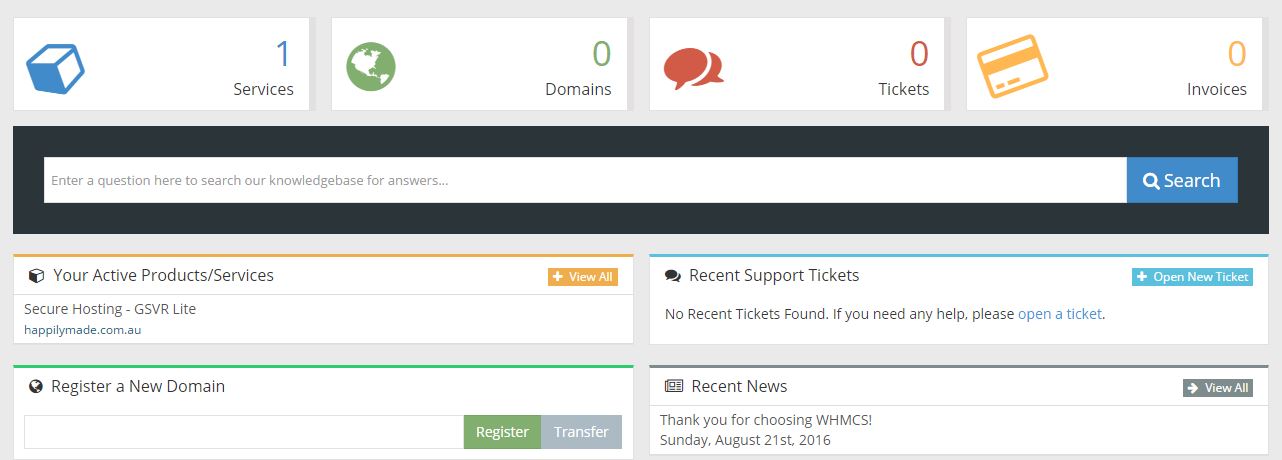
Step 1 - Login to your members area and click on the service - eg. www.happilymade.com
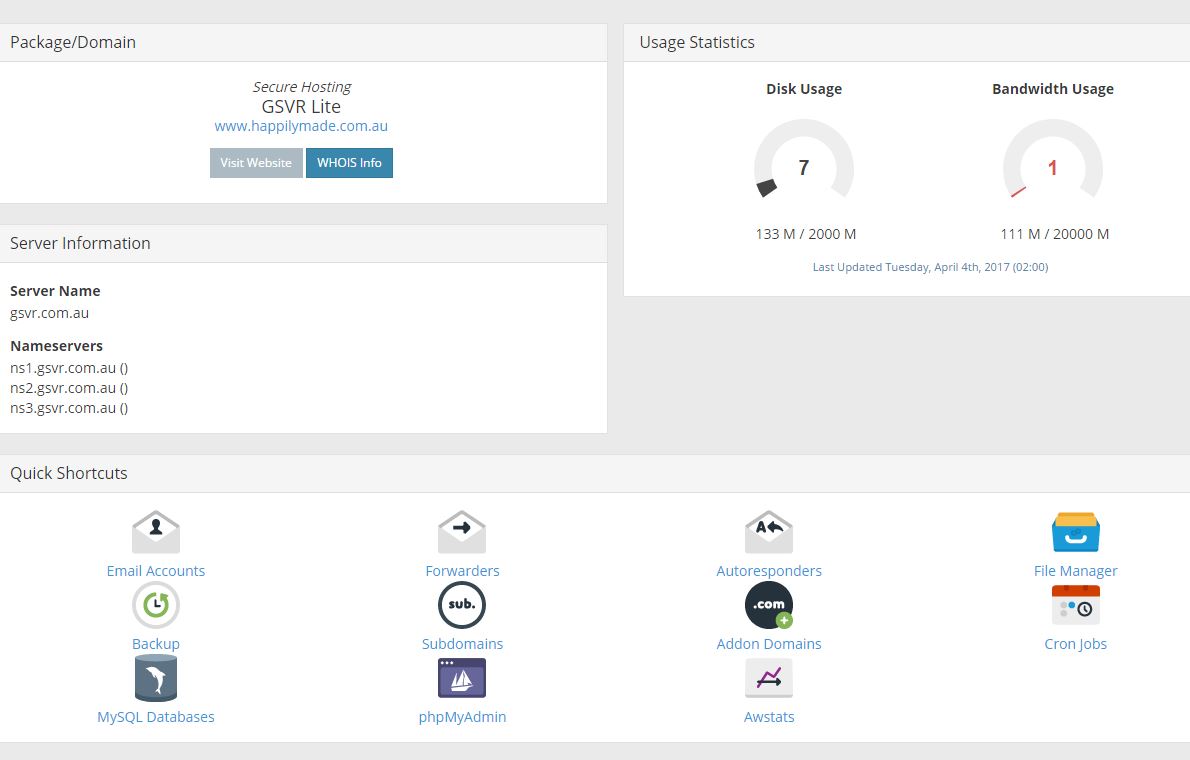
Step 2 - Click on "File Manager"
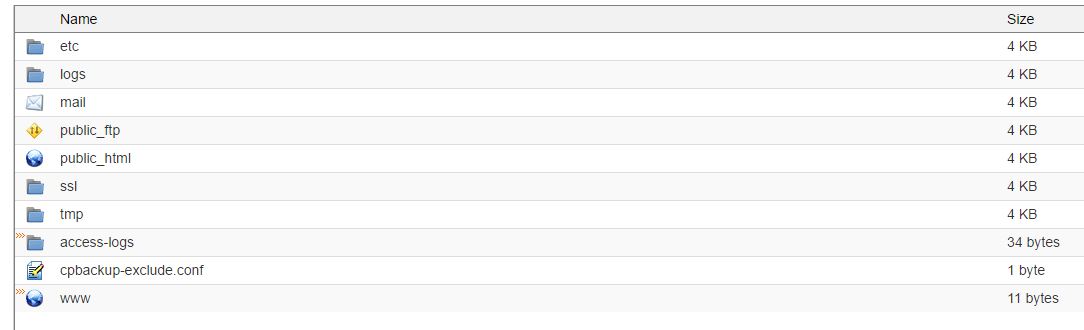
A new window will open up with all the files on your server. Double click on Public_html
Step 4 - Click on "Settings" in the top right corner.
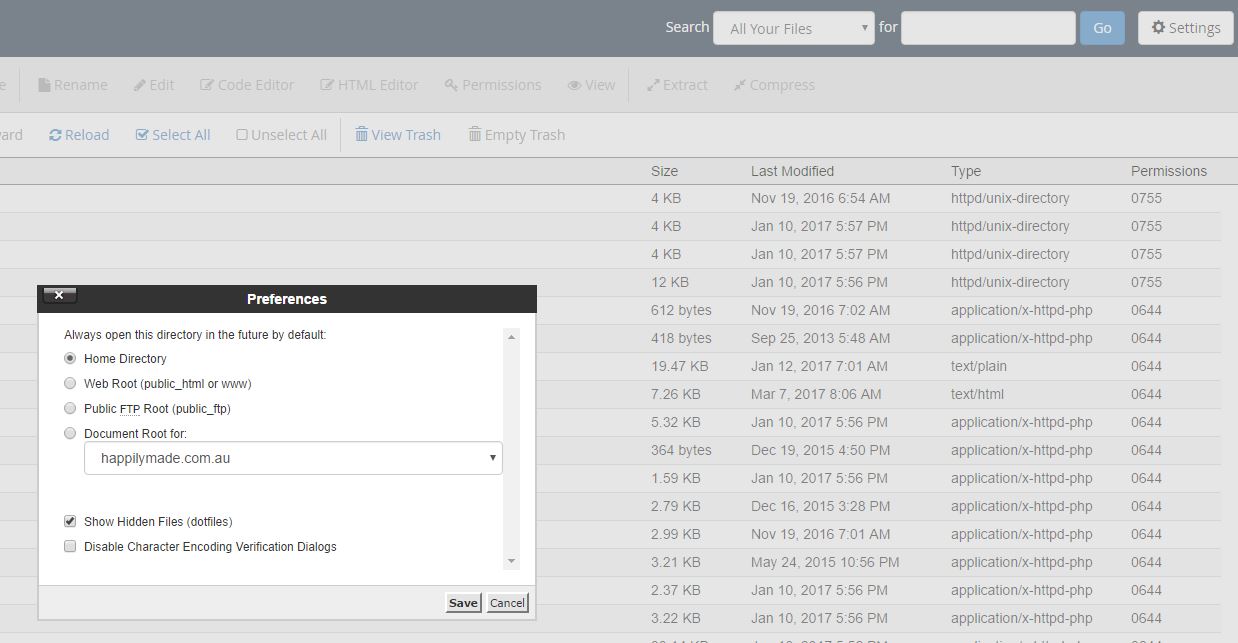
Click "Show Hidden Files (dotfiles)
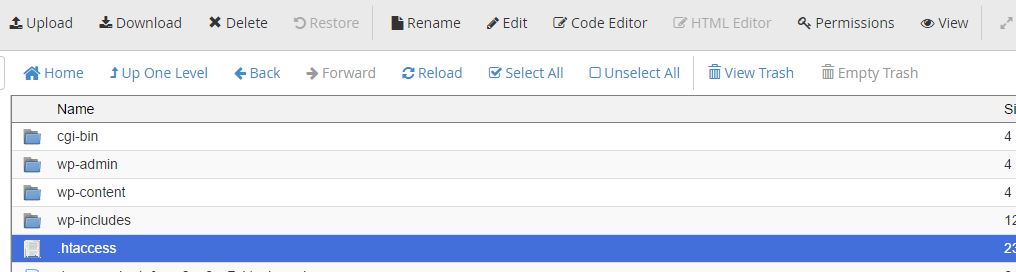
Step 5 - Select .htaccess and click "Code Editor"
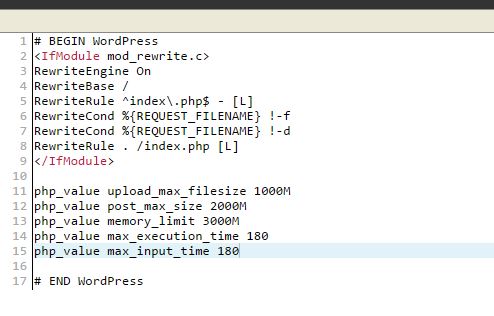
Step 6 - Paste in the following code exactly how you see it below. (Just before the # END Wordpress line)
php_value upload_max_filesize 64M
php_value post_max_size 128M
php_value memory_limit 128M
php_value max_execution_time 180
php_value max_input_time 180
This will ensure you will have no limitations. If you are still experiencing issues please contact us via our support ticket page.
Save the file and exit the file manager. You can check to see if your changes have taken effect by going into Wordpress and looking at the Media Library upload section within Wordpress.
Step 4 - Click on "Settings" in the top right corner.
Click "Show Hidden Files (dotfiles)
Step 5 - Select .htaccess and click "Code Editor"
Step 6 - Paste in the following code exactly how you see it below. (Just before the # END Wordpress line)
php_value upload_max_filesize 64M
php_value post_max_size 128M
php_value memory_limit 128M
php_value max_execution_time 180
php_value max_input_time 180
This will ensure you will have no limitations. If you are still experiencing issues please contact us via our support ticket page.
Save the file and exit the file manager. You can check to see if your changes have taken effect by going into Wordpress and looking at the Media Library upload section within Wordpress.